Layer3D vs Jitter: 3D Motion Design Compared in 2026
Layer3D and Jitter are browser-based motion tools, but they solve different problems. This detailed 2026 comparison examines Figma import, 2D animation, true 3D modeling, materials, cameras, rendering, AI, collaboration, and export.
Feature availability and plan information were checked against Jitter's official product and help pages on August 31, 2026. Layer3D capabilities reflect the current Layer3D Studio workflow.
The Short Answer
Choose Jitter when the deliverable is primarily a flat motion asset: an animated interface, a social graphic, a kinetic title, a GIF, or a Lottie animation. Jitter is fast, collaborative, rich in presets, and increasingly capable through AI-assisted effects and content variation.
Choose Layer3D when the design must become a real spatial scene. Layer3D moves beyond animated artboards into editable geometry, topology, non-destructive modifiers, layered materials, lights, cameras, path-traced rendering, and geometry checks for physical output.
That distinction is the decisive advantage. Jitter animates layers on an artboard extremely well. Layer3D turns layers into a three-dimensional production system.
Layer3D vs Jitter at a Glance
| Capability | Layer3D | Jitter | Stronger choice |
|---|---|---|---|
| Primary workflow | Design-to-3D creation, animation, and rendering | 2D motion design and content production | Depends on output |
| Browser-based editor | Yes | Yes | Tie |
| Figma import | Editable design layers can become a spatial scene | Pixel-accurate import with editable layers and synced replacement | Tie for import; Layer3D for spatial continuation |
| Sketch and MasterGo import | Supported | Not listed as primary import paths | Layer3D |
| True 3D coordinates | Yes | Jitter documents layer position on an artboard; AI can create 3D-looking effects | Layer3D |
| Mesh modeling | Editable forms, vertices, edges, and faces | Not presented as a mesh-modeling workflow | Layer3D |
| Topology editing | Knife, loop cut, bevel, solidify, subdivision | Not presented as topology tooling | Layer3D |
| Non-destructive geometry modifiers | Ordered editable modifier stack | Not a geometry-modifier system | Layer3D |
| Materials | Layered editable material and procedural-effect stack | Fills, gradients, blur, blend modes, shadow, glass-style effects | Layer3D for physical materials; Jitter for 2D styling |
| Lights | Scene lighting controls | Visual effects rather than documented scene lights | Layer3D |
| Cameras | Editable and animatable scene camera | Artboard-based composition | Layer3D |
| Depth of field | Camera-aware post-processing | Layer and background blur effects | Layer3D for optical scene depth |
| Path-traced rendering | Progressive WebGPU path tracing with denoising | Fast rendered motion exports | Layer3D for physically aware rendering |
| Text animation | Live editable text with keyframes and effects | Excellent line, word, letter, and custom text animation | Jitter for rapid kinetic type; Layer3D for spatial type |
| Motion presets | Template-driven starting points | Extensive presets, easings, reusable actions, and templates | Jitter |
| Custom animation | Property tracks and keyframes across scene properties | Custom operations, reusable animations, paths, morphing, and easing | Different models |
| AI-generated effects | Not the primary documented workflow | AI effects, Brainstorm, variations, image-to-video, and automation | Jitter |
| Real-time collaboration | Not the primary documented differentiator | Shared workspace, live collaboration, links, comments, approvals | Jitter |
| Lottie export | Not the primary output | Supported, including text and mask animation handling | Jitter |
| Video export | Up to 1080p and 60 fps | Up to 4K and 120 fps on eligible plans | Jitter for resolution and frame rate |
| Watermark-free output | Clean exports are available without a watermark | Requires a paid plan for watermark removal | Layer3D |
| Frame export | Supported | Available on Max and Ultra plans | Layer3D accessibility; both capable |
| Transparent video | Not the primary documented output | WebM, MOV, and GIF on Max and Ultra | Jitter |
| 3D-print preparation | Scale, wall-thickness, closure, and manifold checks | Not part of the documented workflow | Layer3D |
The Fundamental Difference: Animated Layers vs a Spatial Scene
Jitter's official documentation describes a persistent layer on an artboard with a design state and timed animation operations. Its custom animations cover movement, scale, rotation, opacity, color, shadow, blur, resizing, masks, text, and shape morphing. This is an approachable and productive model for 2D motion.
Layer3D begins with layers too, but it does not stop at an artboard. Imported design elements can be separated through depth and developed as objects inside a scene with three-dimensional coordinates. That scene can contain geometry, materials, lighting, cameras, animated properties, and a rendering pipeline.
The difference matters because a visual trick that suggests depth is not the same as spatial data.
- A 2D rotation or perspective effect changes how a layer looks.
- A 3D object has geometry that can be viewed from another camera angle.
- A blur can imitate depth of field.
- A camera-aware depth-of-field pass responds to the actual distance between the lens and scene objects.
- A translucent fill can resemble glass.
- A glass material participates in scene lighting, material-aware reflection, and the surrounding composition.
Jitter's AI documentation even describes the ability to create “3D effects on flat shapes.” That wording is useful: the result can look dimensional, but the source remains a flat layer. Layer3D's advantage is that the dimension is part of the editable scene itself.
Detailed Capability Comparison
1. Figma Import and Design Continuity
Both products understand that rebuilding approved design work is wasteful.
Jitter provides a mature Figma plugin. Its official product page highlights pixel-accurate import, editable layers, and the ability to replace updated Figma layers while keeping animations intact. For teams already producing UI animation, this is a strong workflow.
Layer3D also preserves editable design structure, but the purpose of the import is different. Figma layer order can establish depth, allowing a flat composition to unfold into a dimensional scene. Typography, shapes, hierarchy, and brand relationships become the starting point for 3D work rather than a reference that must be recreated in another application.
Layer3D additionally supports Sketch and MasterGo imports. For design teams working across several interface-design ecosystems, that broader entry path can reduce conversion work.
Verdict: Jitter is excellent when Figma needs motion. Layer3D has the stronger pipeline when Figma needs geometry, materials, lighting, camera movement, and rendered depth.
2. Animation Model and Timeline Control
Jitter is intentionally optimized for speed. Designers can apply presets, combine custom operations, reuse animations, stagger groups, draw curved paths, and tune easing without confronting a traditional keyframe-heavy interface. Text can animate by letter, word, line, or layer. This is one of Jitter's clearest strengths.
Layer3D uses tracks, clips, keyframes, and a precise playhead. The timeline does more than move flat elements. It can control object transforms, camera movement, material properties, scene states, text effects, and geometry-related parameters.
This produces a practical tradeoff:
- Jitter is often faster for a familiar 2D entrance, transition, logo sting, interface demo, or kinetic type treatment.
- Layer3D offers deeper control when motion must coordinate objects, cameras, materials, and spatial composition in the same sequence.
Verdict: Jitter wins for rapid 2D motion assembly. Layer3D wins when the timeline must direct a complete 3D scene.
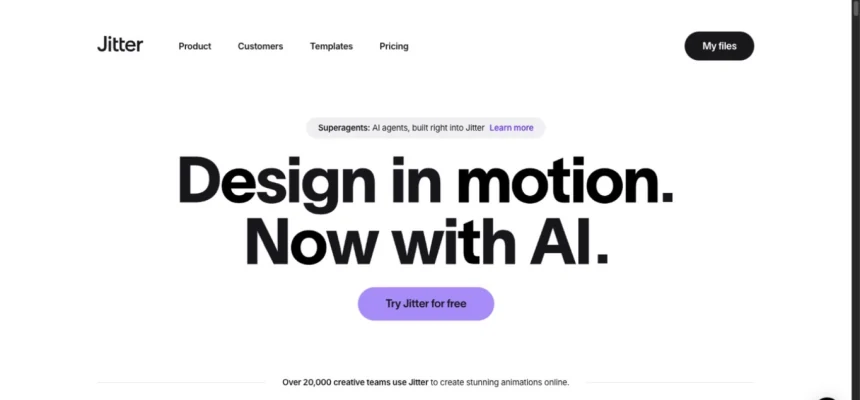
Jitter product page shown for editorial comparison. Source: Jitter, captured in Chrome on August 31, 2026.
3. Modeling, Topology, and Non-Destructive Geometry
This is where the comparison stops being close.
Layer3D includes editable 3D forms and topology-level operations. Designers can work with vertices, edges, and faces, then refine geometry with knife, loop cut, bevel, solidify, and subdivision tools. An ordered modifier stack keeps operations adjustable rather than permanently baking every change into the object.
Jitter's documented shape capabilities are designed for motion graphics: rectangles, ellipses, stars, custom vectors, morphing, masks, fills, strokes, gradients, and SVG assets. Those capabilities are valuable, but they are not a substitute for topology or a non-destructive mesh pipeline.
If a project needs an extruded mark, a beveled product form, controlled wall thickness, a subdivided surface, or geometry that remains editable from another camera angle, Layer3D has an absolute structural advantage.
4. Materials, Glass, Light, and Surface Response
Jitter provides strong 2D appearance controls. Its current product documentation includes gradients, blur, background blur, blend modes, shadows, masks, and glass-style effects. These are useful for interface animation, title design, and graphic treatments.
Layer3D treats appearance as part of a spatial rendering system. Materials live in an editable stack and can include procedural effects, color treatments, animated properties, and transparent or sanded glass with independent blur and clarity controls. Lights and surrounding objects affect the final result.
This means Layer3D can answer questions that a flat effect cannot:
- How does the surface reflect another object in the scene?
- What happens when the light moves?
- How does a transparent object overlap geometry behind it?
- How does a camera move change highlights and reflections?
- Can material properties animate without flattening the scene?
Verdict: Jitter is effective for designing the appearance of a layer. Layer3D is the stronger tool for designing how a surface behaves in a scene.
5. Camera, Rendering, and Final Image Quality
Jitter's export system is fast and broad. Depending on plan, it can produce MP4, MOV, WebM, GIF, Lottie, transparent video, frame sequences, 4K output, and up to 120 fps. For social, product, interface, and campaign motion, that delivery range is excellent.
Layer3D's advantage is not a higher number in the resolution menu. It is the kind of image being rendered.
Layer3D combines an editable camera, scene lighting, material-aware reflection, progressive WebGPU path tracing, denoising, and an ordered post-processing stack that can include bloom, depth of field, tone mapping, and vignette. The output is derived from a three-dimensional scene rather than a composited artboard.
Jitter currently wins on maximum documented resolution and frame rate. Layer3D wins when visual fidelity depends on camera perspective, material response, spatial lighting, reflection, and actual depth.
6. Text and Brand Motion
Jitter is a particularly strong kinetic-type tool. It supports text animation by letter, word, line, or entire layer, plus custom movement, rotation, scale, opacity, color, blur, masks, spacing, line height, counters, and reusable effects.
Layer3D keeps text live and editable while allowing it to participate in a spatial scene. Type can be positioned through depth, animated alongside a camera, combined with materials, or placed within a rendered product environment.
Choose Jitter for fast, expressive 2D type systems and Lottie-ready text motion.
Choose Layer3D when typography needs to occupy space, interact with lighting and materials, or move as part of a dimensional title sequence.
7. AI, Templates, and High-Volume Variations
Jitter has a clear lead in AI-assisted 2D production. Its official pages describe AI Brainstorm, custom AI effects, image-to-video, generated variations, automatic resizing and translation, Magic Import, animated components, and batch export. It also offers hundreds of templates and a collaborative workspace.
Layer3D's current value proposition is different: controlled scene construction. It focuses on editable geometry, materials, cameras, keyframes, rendering, and design continuity rather than generative effect volume.
For a team producing hundreds of localized flat campaign variants, Jitter is likely the more efficient choice. For a team building a reusable dimensional scene in which the camera, materials, lights, and objects must remain controllable, Layer3D provides the deeper foundation.
8. Collaboration and Review
Jitter provides real-time collaboration, shared workspaces, shareable links, comments, folders, and approval-oriented workflows. These features make it well suited to distributed motion teams and stakeholder review.
Layer3D's strongest team benefit is production continuity: design import, scene editing, animation, rendering, and export stay in one browser workflow. That reduces tool switching and the ambiguity created by multiple handoff files, but it is not the same as Jitter's documented real-time collaboration stack.
Verdict: Jitter currently has the clearer advantage for live multi-user collaboration and review.
9. Export, Handoff, and Physical Output
Jitter is broader for flat digital delivery. Lottie is especially valuable for interface and web animation, while transparent video and 4K/120 fps exports support professional compositing and high-resolution motion work. Some capabilities are plan-dependent: Jitter's official help center states that watermark removal requires a paid plan, while transparent, frame-by-frame, 4K, 120 fps, and batch exports are assigned to higher tiers.
Layer3D exports video at up to 1080p and 60 fps, as well as rendered frames, with clean output available without a watermark. More importantly, its geometry can continue toward physical output through checks for real-world scale, wall thickness, closure, and manifold structure.
Jitter can deliver an animation file. Layer3D can deliver an animation, a rendered image sequence, and—when the model is appropriate—a checked piece of geometry that continues toward a physical prototype.
That end-to-end path from design layer to spatial motion to physical form is a unique Layer3D advantage.
Where Layer3D Has an Absolute Advantage
Layer3D is not universally better at every motion-design task. It does, however, have an absolute advantage whenever the project requires capabilities that only exist in a true 3D scene:
- Real geometry instead of a visual approximation of depth.
- Topology editing with vertices, edges, and faces.
- Non-destructive geometry modifiers.
- Materials that respond to lighting and surrounding objects.
- An animatable camera inside the scene.
- Spatial depth of field, reflection, and post-processing.
- Progressive path-traced rendering in the browser.
- Geometry validation for basic physical output.
No quantity of 2D presets, AI effects, or export formats changes that architectural difference. If the brief says “make this interface animate,” Jitter is a strong answer. If it says “turn this design into a controllable 3D scene,” Layer3D is the direct answer.
Where Jitter Is the Better Tool
A credible comparison should also make the opposite decision clear. Jitter is likely the better choice when the project prioritizes:
- Fast 2D motion from presets and reusable operations.
- Detailed kinetic typography by letter, word, or line.
- Lottie export for apps and websites.
- Real-time collaborative editing, comments, and approval links.
- AI-generated 2D effects and large numbers of campaign variations.
- Transparent video, 4K, or 120 fps output on eligible plans.
- A large template library for common motion-design formats.
These are meaningful strengths. They do not reduce Layer3D's advantage in true 3D; they simply show that the products optimize different production paths.
Which Tool Should You Choose?
Choose Layer3D if you are:
- Turning a Figma, Sketch, or MasterGo design into a spatial launch animation.
- Building product scenes with glass, metal, lighting, reflections, and camera movement.
- Creating dimensional logos, titles, interface demonstrations, or campaign visuals.
- Looking for a browser workflow that includes modeling, materials, animation, rendering, and export.
- Preparing simple geometry for prototyping or 3D printing.
- Trying to avoid rebuilding design work in a traditional 3D suite.
Choose Jitter if you are:
- Animating interfaces, social posts, decks, explainers, or flat brand graphics.
- Delivering Lottie, GIF, transparent video, 4K, or high-frame-rate motion.
- Coordinating a collaborative 2D motion workflow with comments and approvals.
- Generating many localized or channel-specific animation variations.
- Prioritizing presets, templates, and AI-assisted effects over spatial scene control.
A Practical Decision Test
Ask one question before comparing pricing or counting features:
Does the final design need to exist in actual three-dimensional space?
If the answer is no, Jitter's focused 2D workflow may be faster.
If the answer is yes, Layer3D removes an entire handoff. You do not have to animate the flat version in one tool, rebuild it in another 3D application, recreate materials and cameras, and then reconnect the output to the original design process. The imported design becomes the spatial scene.
That is Layer3D's core value and its strongest competitive advantage.
Frequently Asked Questions
Is Layer3D an alternative to Jitter?
Yes, when the goal is browser-based motion from existing design assets. The tools diverge after that starting point: Jitter specializes in 2D motion production, while Layer3D extends design assets into true 3D scenes.
Can Jitter create 3D animation?
Jitter can create dimensional-looking motion, perspective, glass effects, 3D rotation effects, and AI-generated visual treatments. Its official documentation describes these within a layer-and-artboard animation model. It is not presented as a mesh-modeling, topology, lighting, camera, or path-tracing environment.
Can Layer3D import Figma designs?
Yes. Layer3D keeps imported elements editable and can use Figma layer order to establish depth. Read the full overview of what Layer3D is and how its browser workflow works.
Which tool is better for Lottie?
Jitter. Its official Lottie exporter supports current Lottie standards and includes handling for text and mask animations. Layer3D is focused on rendered 3D motion and frames rather than Lottie delivery.
Which tool is better for product animation?
Layer3D is the stronger choice when the product needs real geometry, materials, lighting, reflections, depth of field, and camera movement. Jitter can be faster for a flat product explainer or interface walkthrough.
Which tool is easier for a beginner?
For simple 2D motion, Jitter's presets and operation-based timeline are likely faster to learn. For designers who specifically need 3D, Layer3D creates a gentler bridge by preserving familiar layers, text, selection, and direct manipulation while introducing geometry, depth, materials, and cameras.
Final Verdict
Jitter is one of the strongest browser tools for fast, collaborative 2D motion. Its Figma workflow, text animation, presets, AI features, Lottie support, team features, and broad export system deserve recognition.
Layer3D wins a different and more spatial contest. It connects editable design import to modeling, topology, modifiers, materials, lights, cameras, keyframes, path-traced rendering, post-processing, frame export, and geometry checks in the browser.
For real 3D creation, the advantage is decisive: Jitter can make a layer look dimensional; Layer3D lets the design become dimensional.
Start a new Layer3D design and move directly from design layers to a controllable 3D scene.